From manifested Jobs to one dedicated Shift
Follow the same route-building flow shown in the original customer tutorial, with every key decision and confirmation kept visible.
Combines selected Jobs into one Shift route
The Route Builder carries the pickup details into the workflow, optimises the route, and prepares the result for pricing and booking.
Customers using My Shifts
Use this guide when multiple manifested MachShip Jobs need to become one dedicated, pre-routed Shift.
Before you start
- Be signed in to the correct customer company.
- Use the Unallocated Sync tab with the Jobs badge.
- Select the manifested MachShip Jobs you want to combine.
What happens automatically
The Route Builder brings through the pickup details from the selected Jobs, the route is validated and optimised, and Price & Review opens with the route summary and booking price.
Open your My Shifts customer portal
Start from My Shifts and make sure you are signed in to the company that owns the Jobs you want to merge.
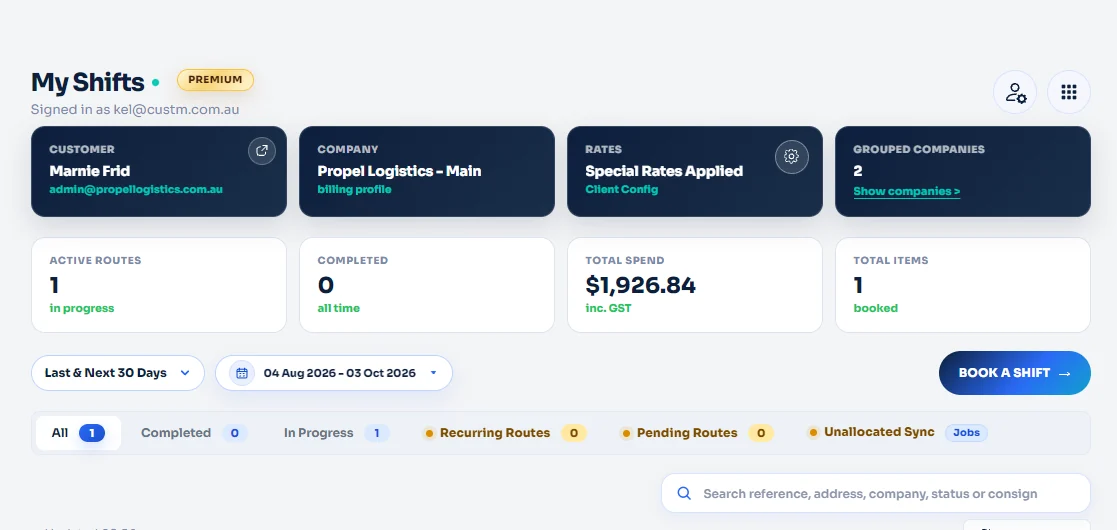
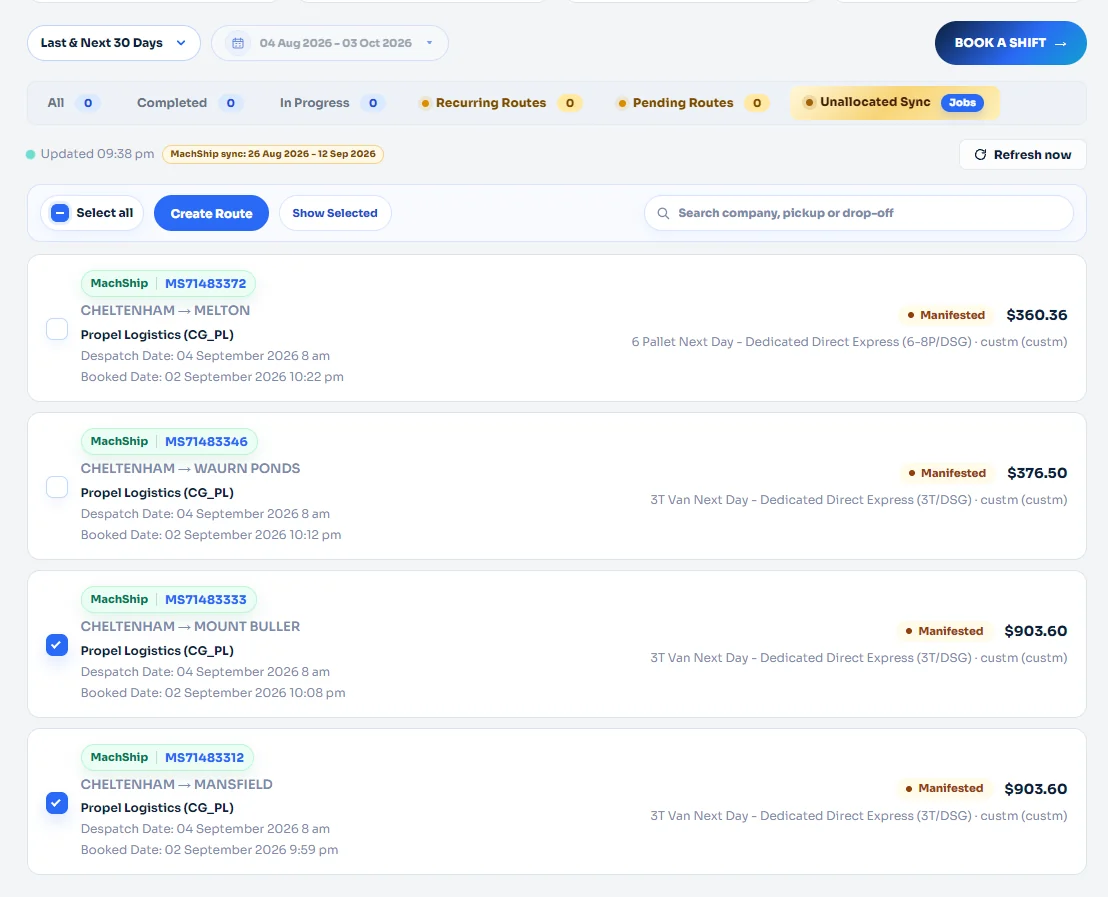
Select the MachShip Jobs you want to merge
Open Unallocated Sync with the Jobs badge. Tick the manifested Jobs you want in the same Shift route, then click Create Route.
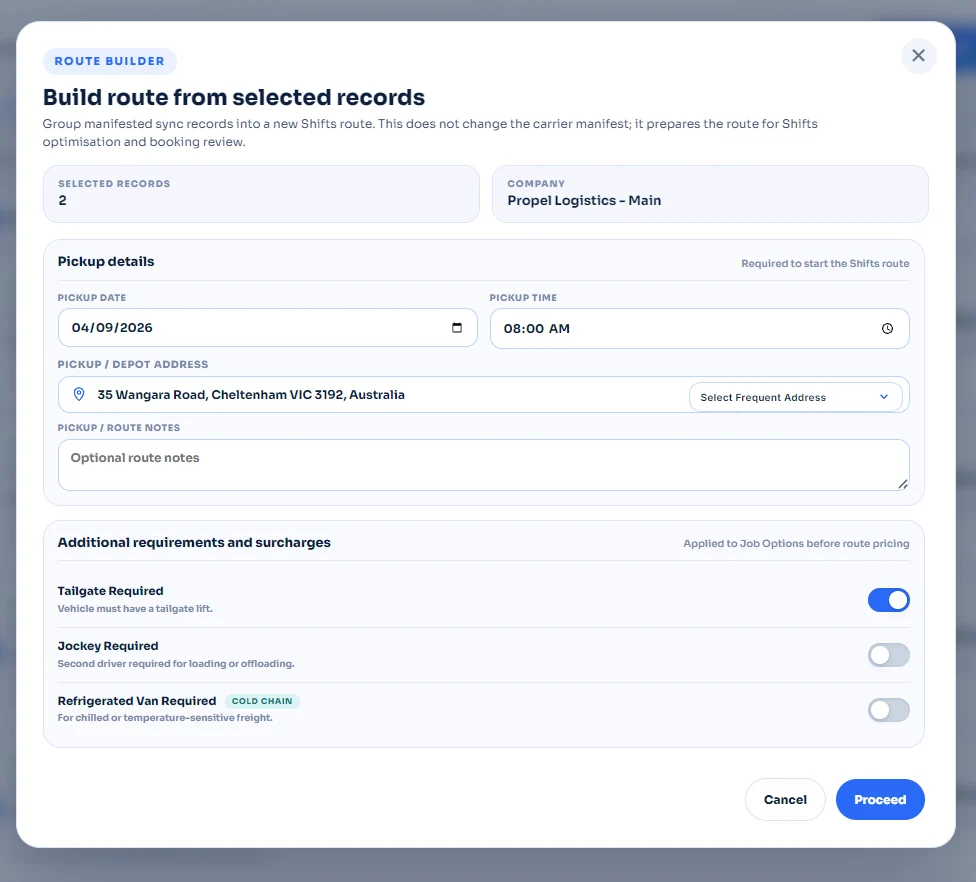
Review the Route Builder
The Route Builder automatically fills the pickup address, pickup notes, and the earliest valid pickup date and time from the selected Jobs. Review the information and switch on any additional requirement you need.
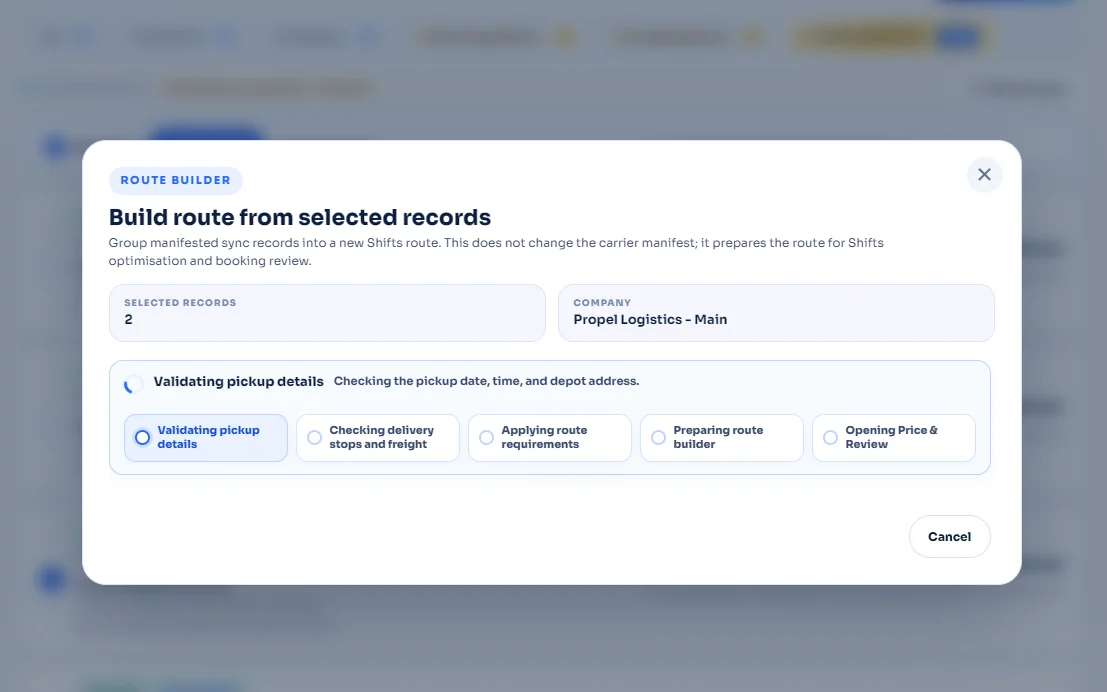
Let Custm build and optimise the route
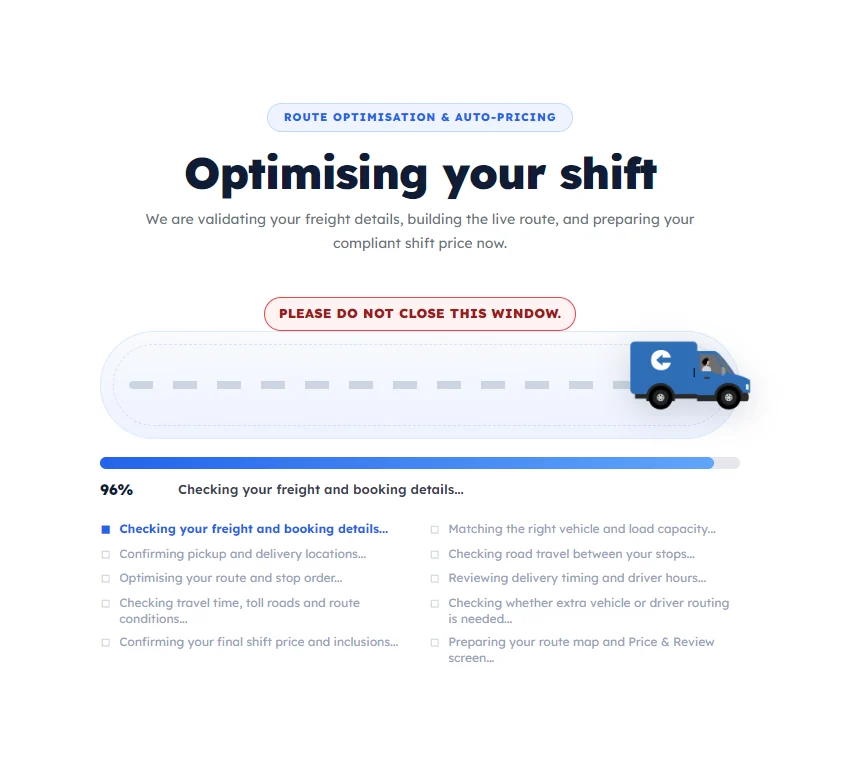
After you click Proceed, the route is validated and prepared. Custm then optimises the selected stops and prepares the pricing and review screen.
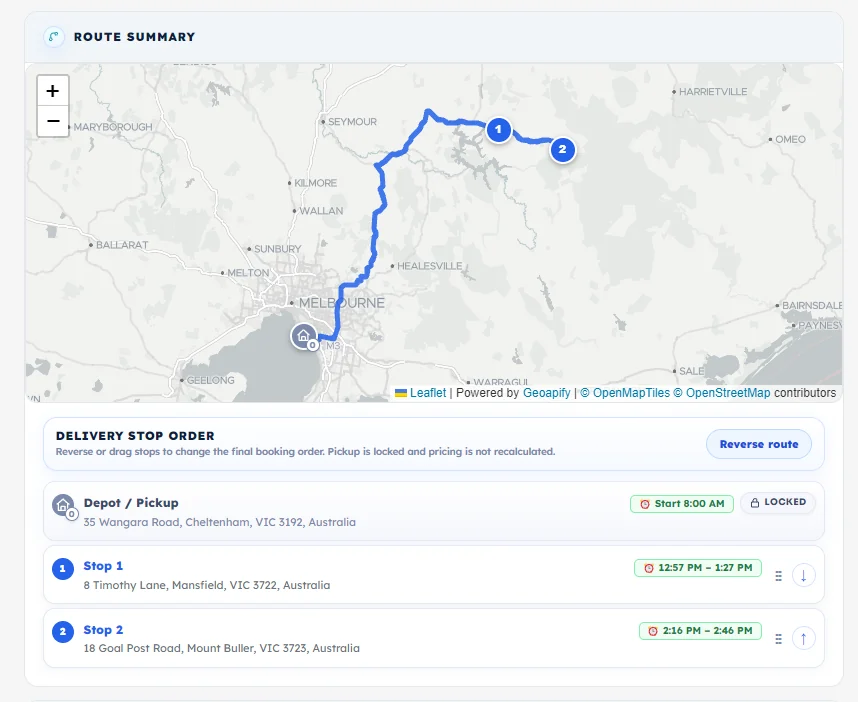
Review the Shift price, route map and stop order
You are taken directly to Price & Review. Check the Shift price and route summary, then review the delivery sequence on the map.
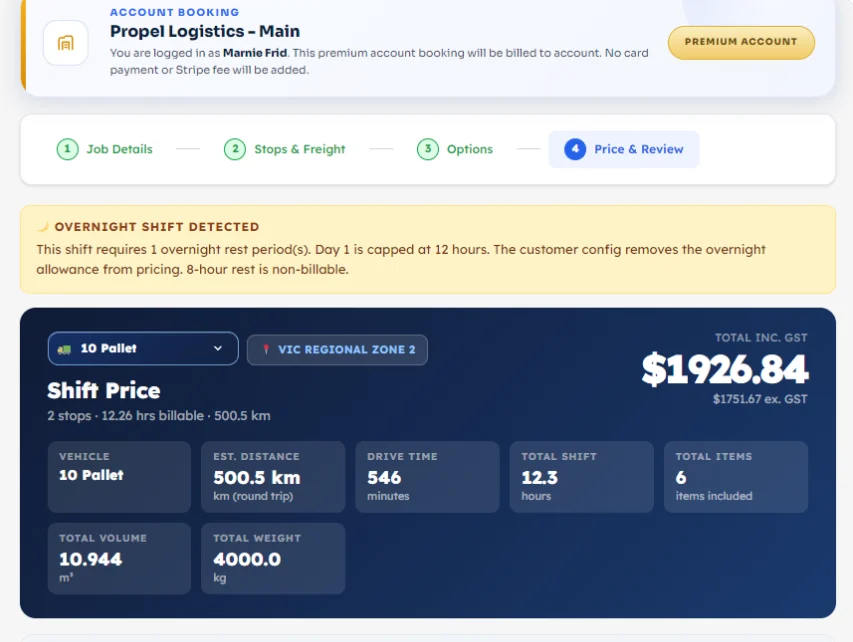
Check the price breakdown and operational summary
Review what makes up the Shift price and confirm the operational details before booking.
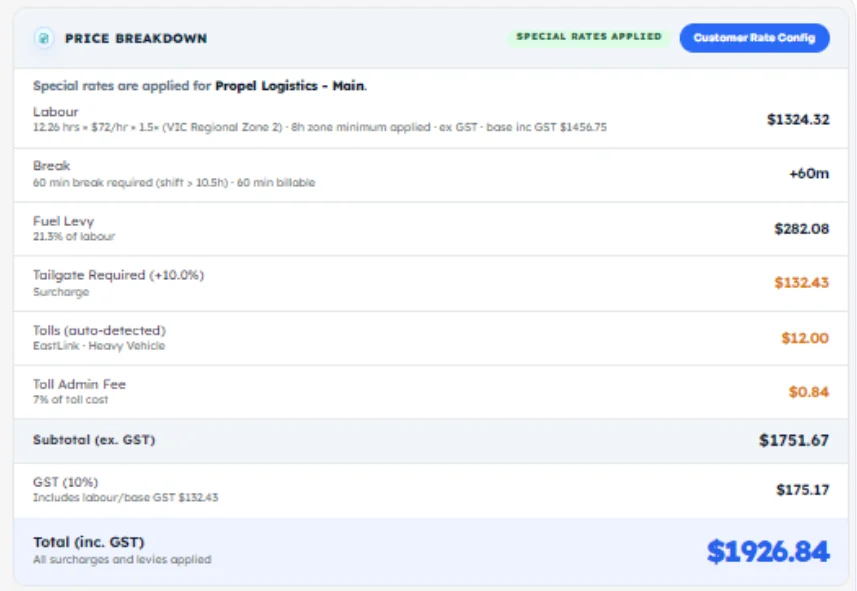
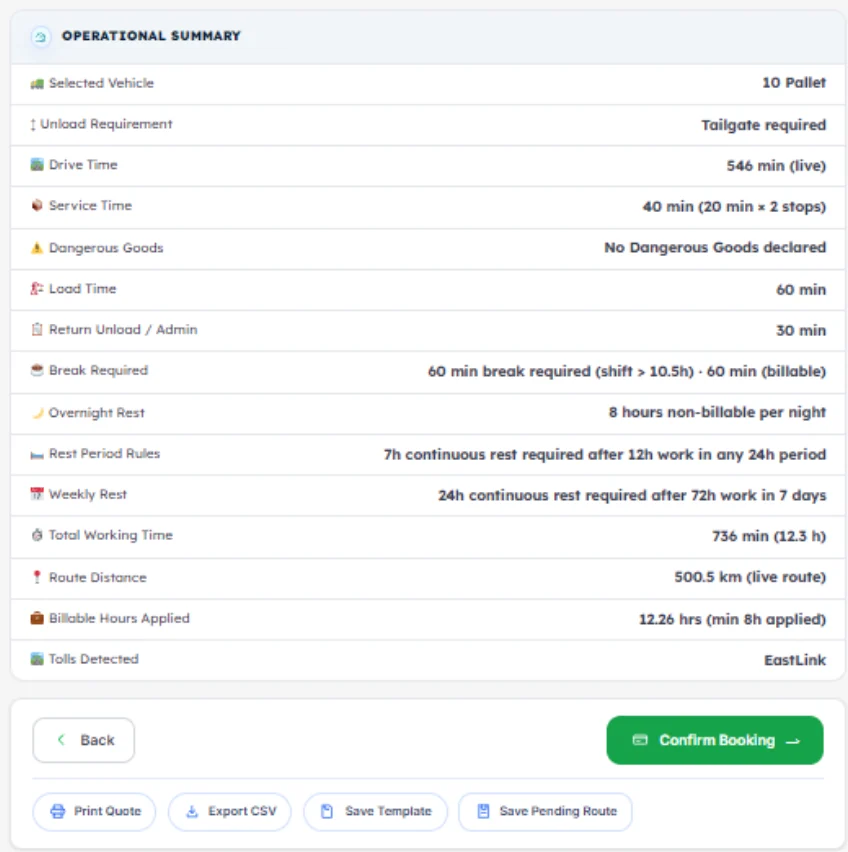
Confirm the Shift and continue to account billing
Click Confirm Booking, review the Booking Summary, and then choose Continue to Account Billing. On the next screen, confirm the signed-in account details and click Confirm Booking on Account.
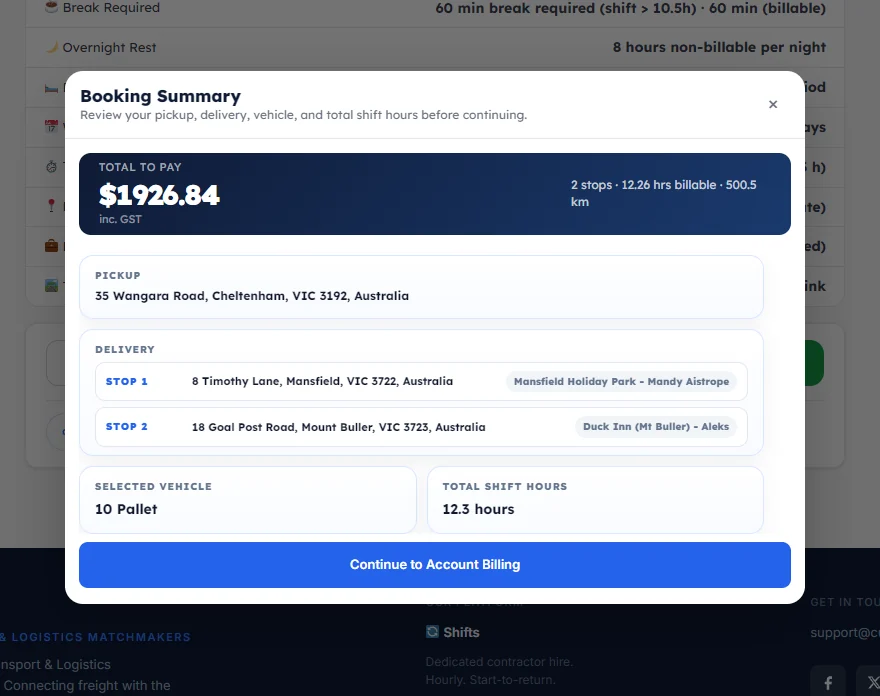
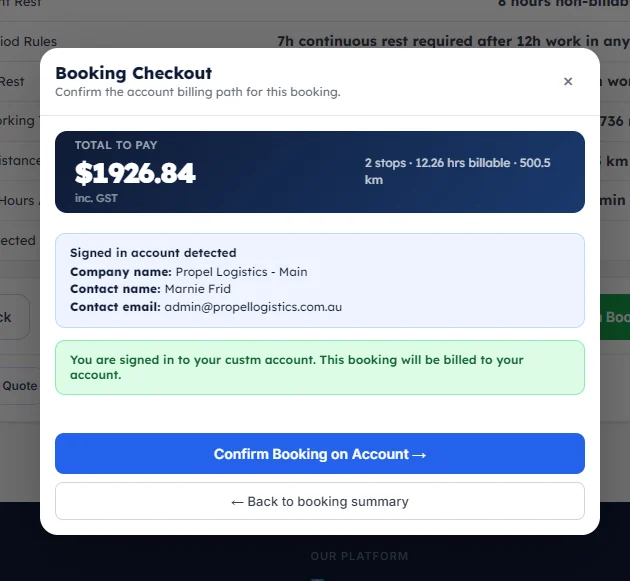
Your Shift booking is confirmed
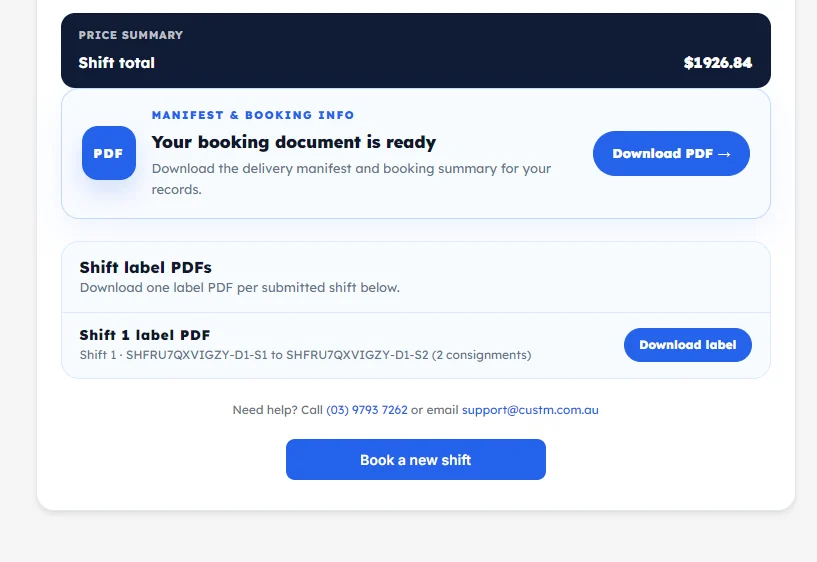
Once the account booking succeeds, the confirmation page shows your booking reference and booking details. You can then click the download actions for Booking Information and the Shift Label PDF.
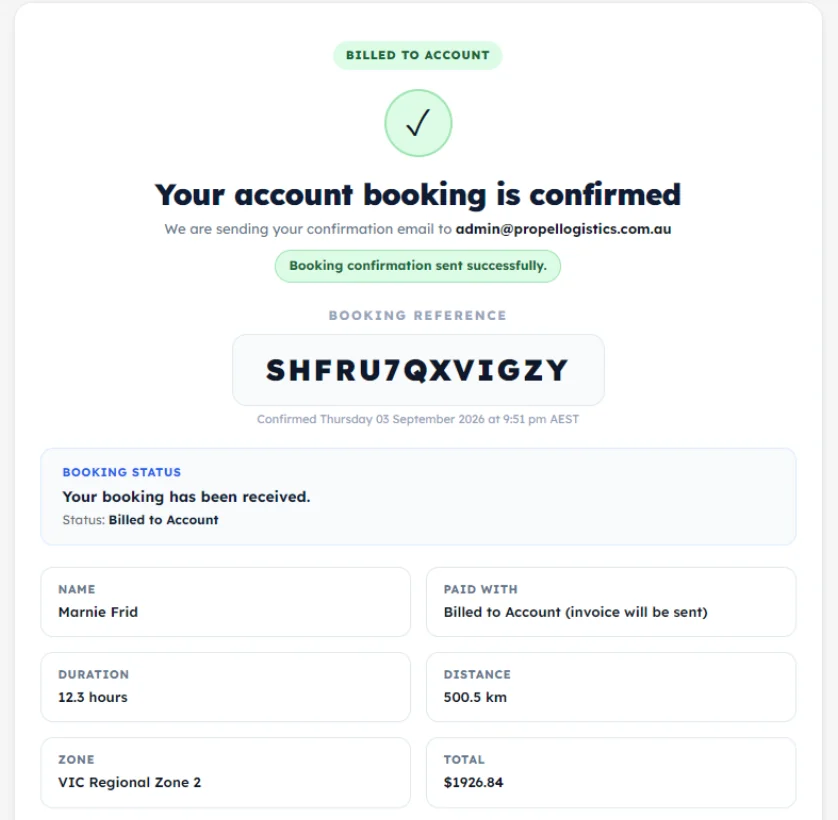
You're done
Your selected MachShip Jobs have been merged into one Custm Shift route. Keep the booking reference and downloaded documents for your records, and use My Shifts to follow the booking from there.