Schedule a saved recurring route template
Use this workflow when you want to book the same recurring route again with the same stops and the same items. From Recurring Routes, you can review the saved template, schedule the pickup date and time, and book the route directly to your account.
Reuse a template without rebuilding the route
The saved recurring route template keeps the same route structure, stops, and freight items so you can book the route again faster.
Custm creates the booking on account
Once you select the pickup date and pickup time and confirm the schedule, the route is automatically booked and billed to your account.
Before you start
- Sign in to the correct customer company in My Shifts.
- Open the Recurring Routes tab.
- Make sure the template already contains the route you want to reuse.
When to use this
This is ideal when you want to use that specific route again with the same stops and the same items, without rebuilding the booking from scratch.
Check the saved route details before scheduling
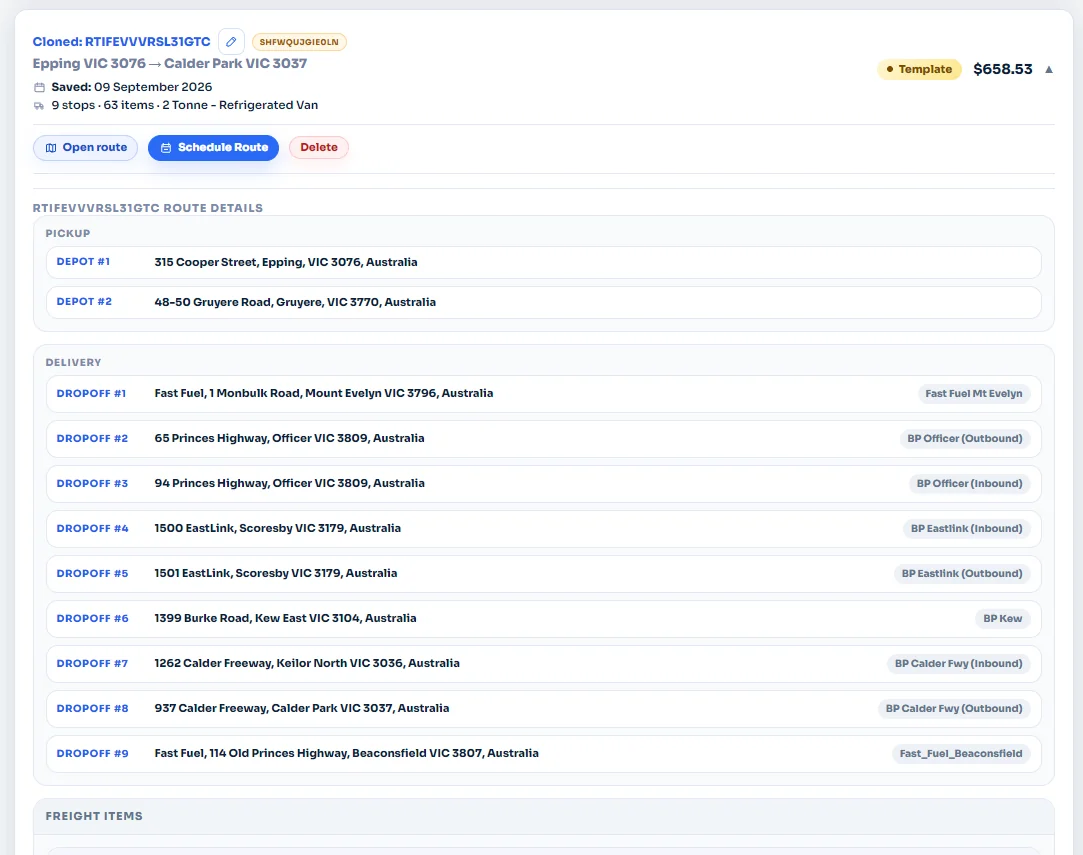
In the Recurring Routes tab, find the template you want to use again. If you want to review the full route before booking it, click the dropdown toggle on the template card to expand the saved details.
Choose the template and click Schedule Route
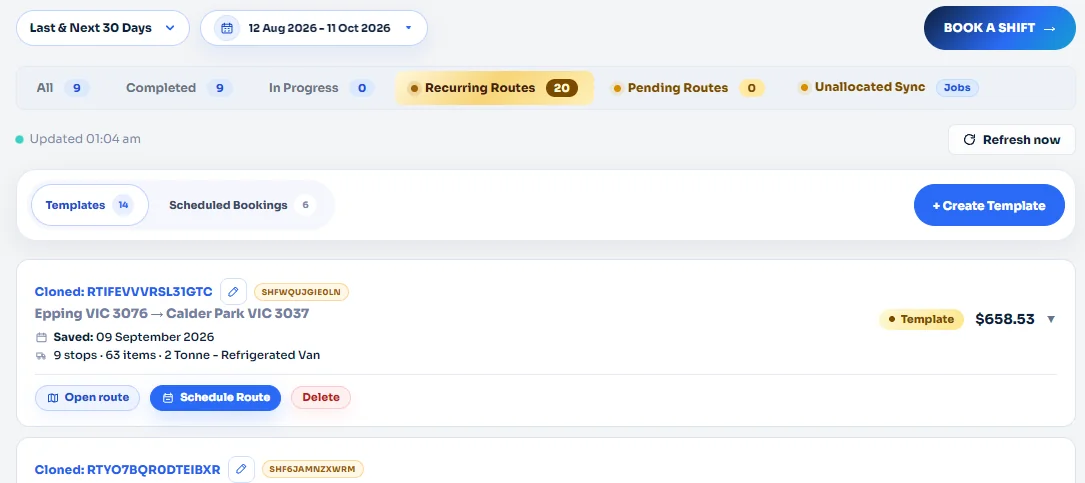
When you are ready to book that saved route again, stay in the Recurring Routes tab, find the correct template, and click Schedule Route.
Select the pickup date and pickup time, then schedule the booking
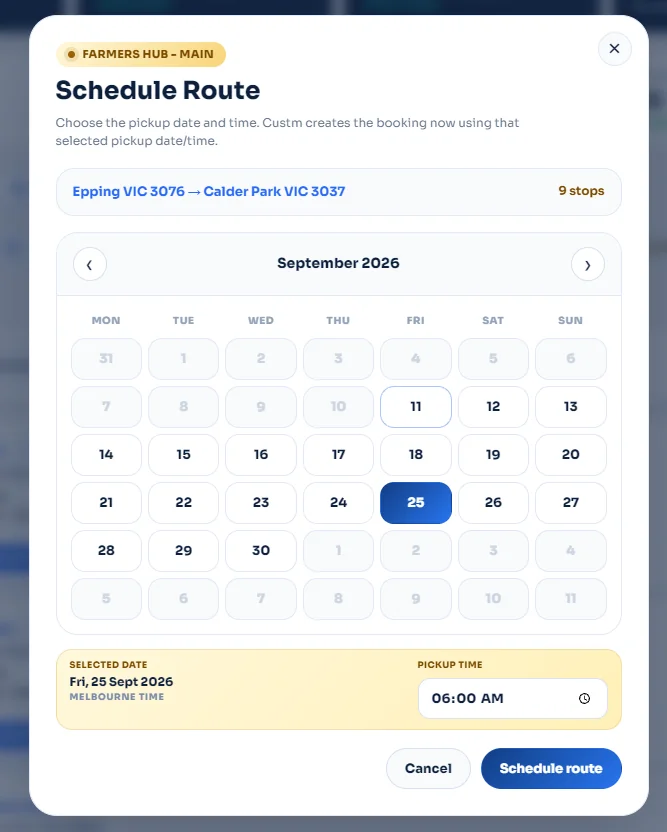
In the Schedule Route modal, select the pickup date from the calendar and choose the pickup time. Once those details are correct, click Schedule route.
Your recurring route is ready to schedule again.
The workflow is simple: review the saved template if needed, click Schedule Route, choose the pickup date and pickup time, and confirm the booking. The route is then booked again using the same stops and the same items.