Turn an existing Shift into a reusable route template
Clone a route you already use, save it under Recurring Routes, choose a new schedule, update anything that changed, continue to view the final price, and confirm the fresh booking on account.
Reuse a proven route without rebuilding it from scratch
Clone Route gives you a reusable starting point from an existing Shift. The cloned route is saved in Recurring Routes, where you can rename it, schedule it, make changes, and submit a fresh booking.
Customers who regularly book similar routes
Customers who regularly book similar routes and want to reduce repeat setup while keeping full control over stops, items, options, schedule, and pricing.
Before you start
- Be signed in to the correct customer company.
- Choose an existing Shift that you want to reuse.
- Use Clone Route to create the reusable template.
What you can change
The template gives you the cloned route as a starting point. Before booking, you can update the schedule, pickup/depot selections, delivery stops, freight items, and job options, then continue through the final booking steps when everything is ready.
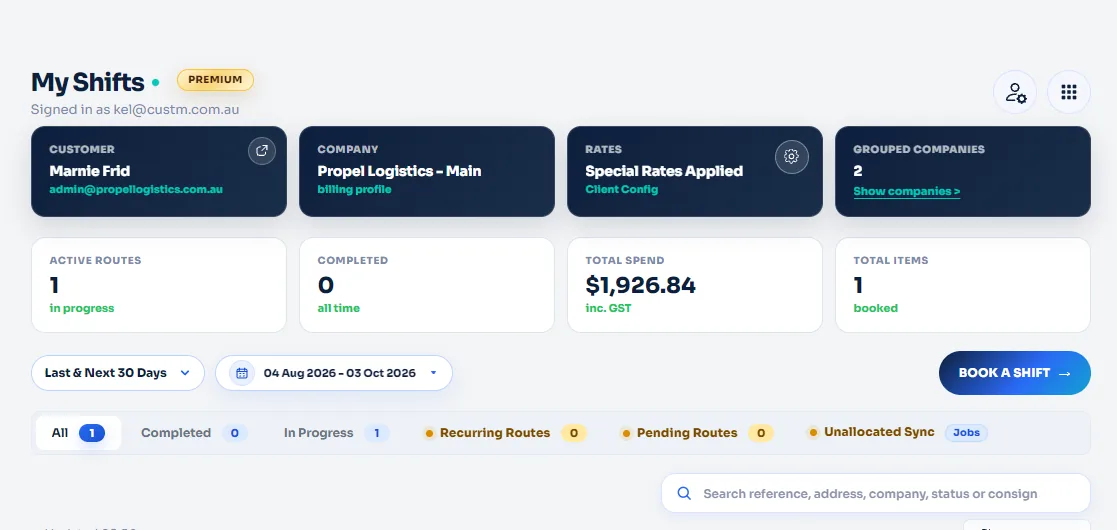
Open your My Shifts customer portal
Start from My Shifts and make sure you are signed in to the customer company whose route you want to reuse.
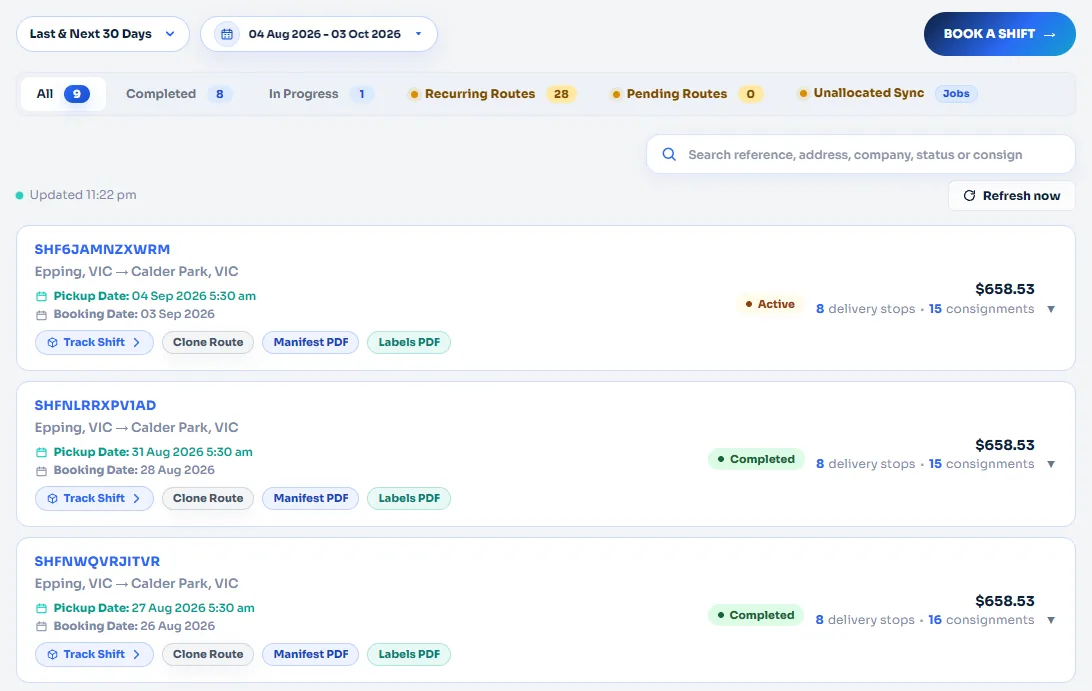
Clone the Shift you want to reuse
Find the route you want to repeat and click Clone Route. This creates a reusable copy without changing the original booked Shift.
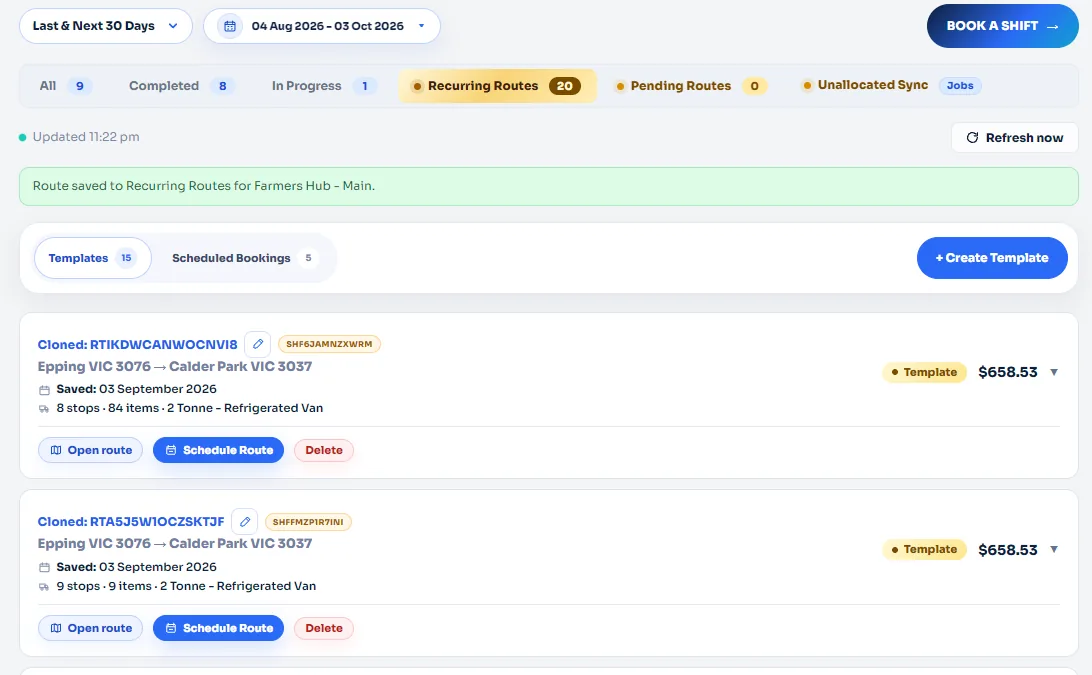
The cloned route is saved as a template
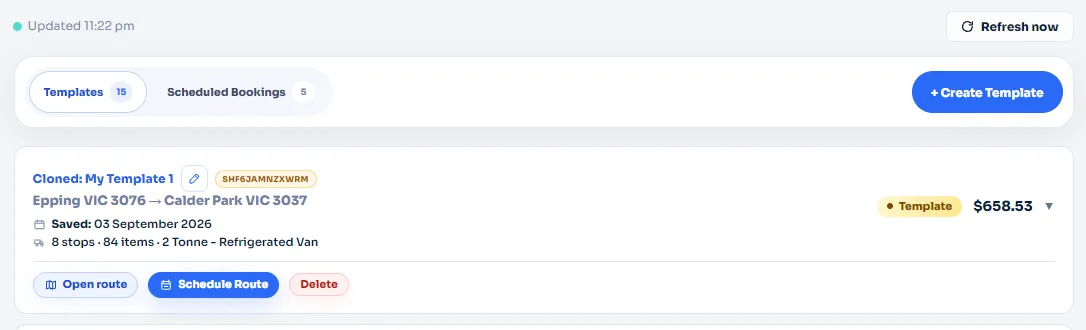
After cloning, you are taken directly to the Recurring Routes tab. The cloned route is automatically saved under Templates.
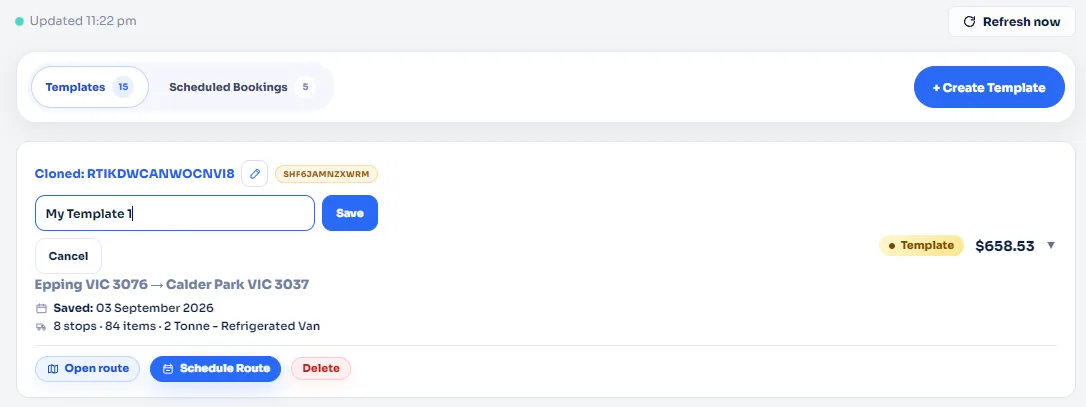
Rename the template so it is easy to recognise
Click the pencil button beside the cloned template, enter a clear template name, then click Save.
Open the saved route template
When the template is ready, click Open Route to start a new booking from the saved route.
Choose the date for the new route
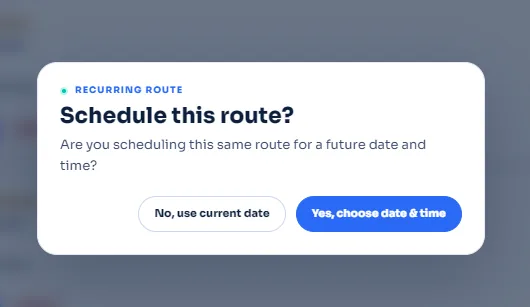
Choose whether to use the current date or select a specific future date and time for the scheduled route.
Review the cloned route
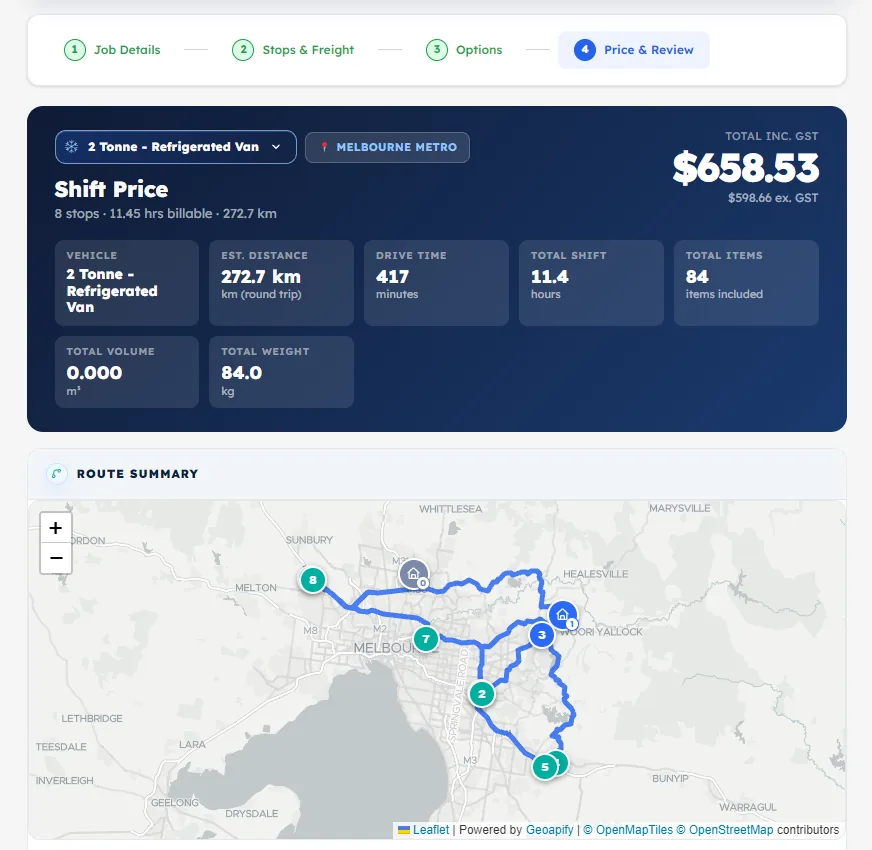
The route opens with the same route setup you cloned, including the route map, stops, vehicle selection, and pricing workflow.
Use Back to return to the editable booking steps
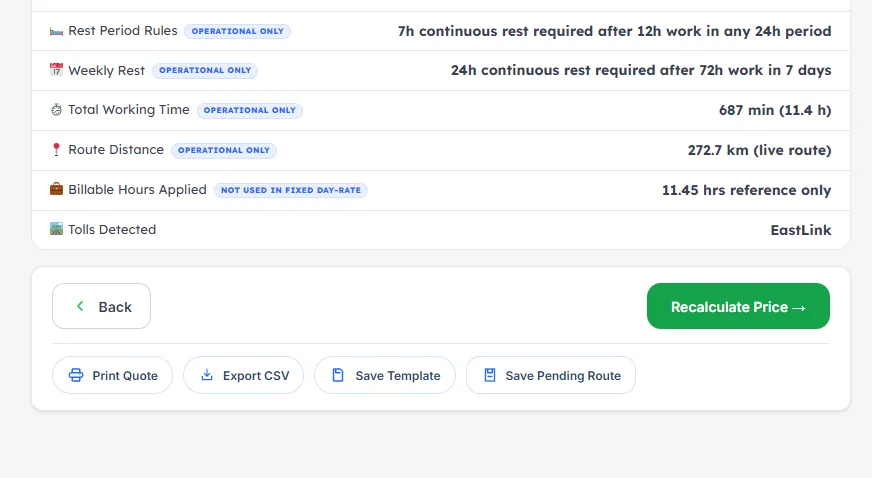
At the bottom of Price & Review, click Back to return to the earlier booking steps and update the route before continuing with the booking.
Review and edit the delivery stops, items and pickup location
Update delivery addresses, pickup/depot selections, contact details, and the freight items for each stop when the new booking is different from the template. You can adjust item descriptions, types, dimensions, weights, and quantities before continuing.
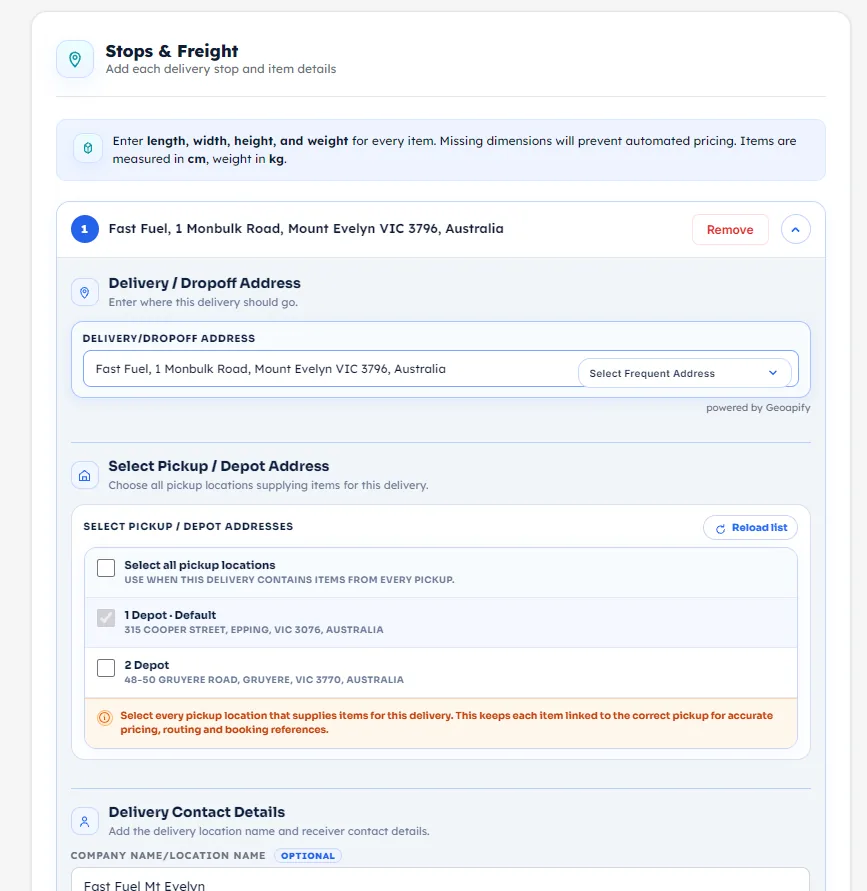
Finalise the booking and continue to Price & Review
When you are happy with the pickup/depot, delivery stops, freight items, and options, use the Next buttons to move through the remaining booking steps, then select Book & View Price to continue to the final price and route review.
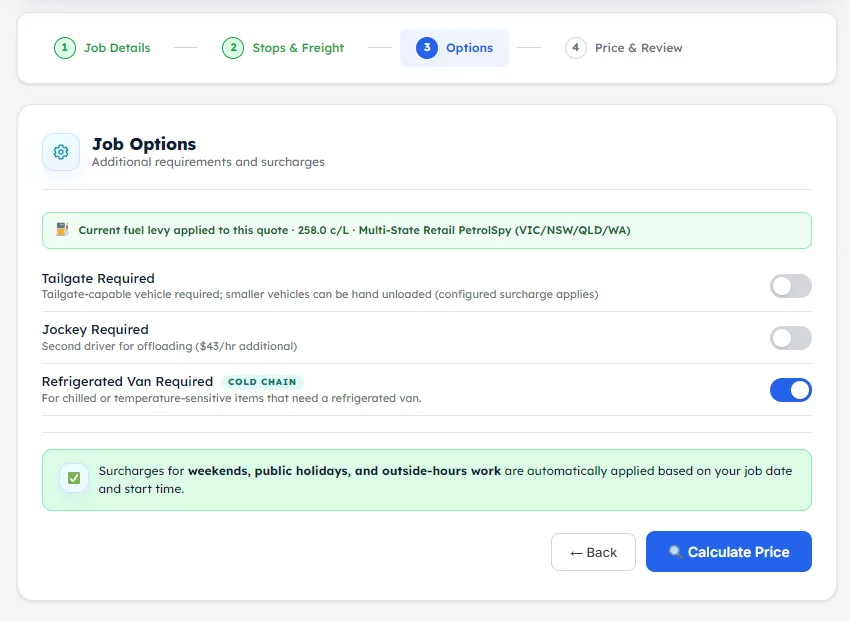
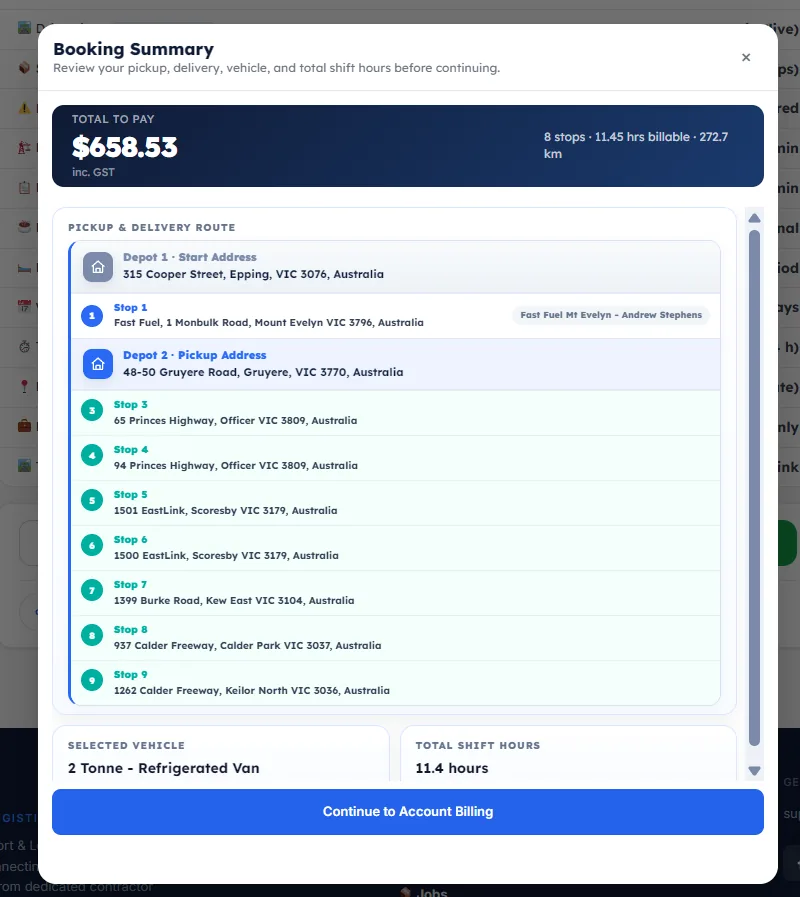
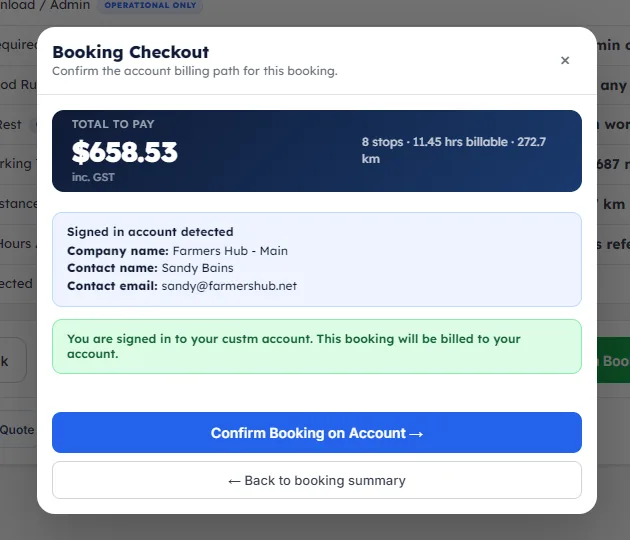
Review the booking and confirm it on your account
From Price & Review, click Confirm Booking. Check the Booking Summary, choose Continue to Account Billing, confirm the signed-in company and contact details, then click Confirm Booking on Account to complete the booking.
You're ready to reuse the route.
The complete workflow is now clear: clone the Shift, save and rename the template, open it from Recurring Routes, choose the schedule, update the route details if needed, continue to view the price, and confirm the new booking on account.