Add, save and manage your frequent items
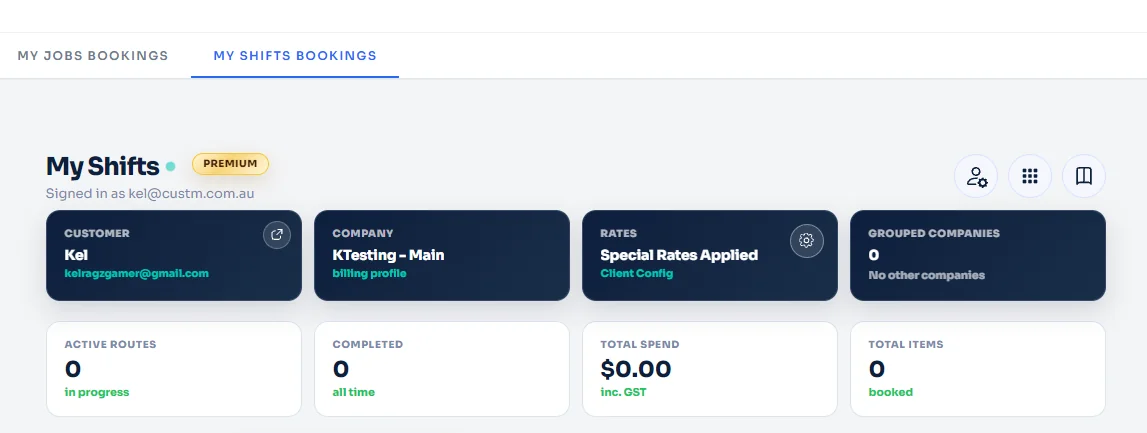
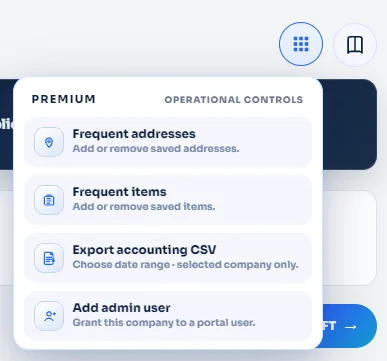
Use the operational controls menu in My Shifts to open Frequent items, save common freight item details for future bookings, review your saved items list, and use the CSV tools when you want to work in bulk.
Save reusable freight-item details on your profile
Frequent items help you keep common freight dimensions and item details ready to use later, reducing repeat data entry in the Shifts workflow.
Add one item or work with the CSV tools
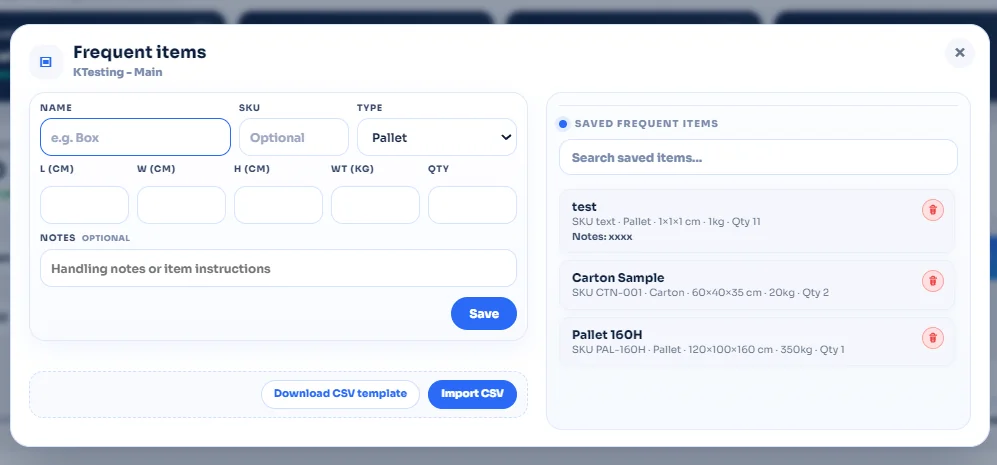
You can save a single frequent item from the form, review the saved items list on the right, remove old items, or download the CSV template and import item data in bulk.
Before you start
- Be signed in to the correct Shifts customer profile.
- Open the My Shifts dashboard.
- Use the operational controls menu in the top-right area of the page.
What you can save
You can save a reusable freight item name, optional SKU, type, dimensions, weight, quantity, and handling notes. These saved items appear in your profile list and can be searched or removed later.
Open the operational controls menu
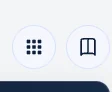
From your My Shifts dashboard, go to the top-right of the page and click the menu-style operational controls button.
Select Frequent items from the menu
After opening the operational controls menu, choose Frequent items from the list.
Use the left side of the modal to enter the item details
The left side of the Frequent items modal is where you add a new reusable item for your profile.
Review the saved frequent items list on the right
The right side of the modal shows your saved frequent items. Each saved item displays the item name and summary details so you can quickly review what is already available in your profile.
Your frequent items are ready to manage.
The workflow is complete: open the operational controls menu, select Frequent items, save a new item from the left panel, then use the right-side list to review, search, delete, or bulk import items.