Reprice multiple pending consignments in one guided flow
Use My Jobs Bookings to select the unmanifested consignments you want to reprice, review available carrier rates for each one, and apply the new carrier and price as you progress through the selected records.
Update the carrier and price for selected consignments
Bulk repricing lets you work through the selected pending consignments one by one and apply a different carrier/rate without reopening each record manually.
Compare available rates for the current consignment
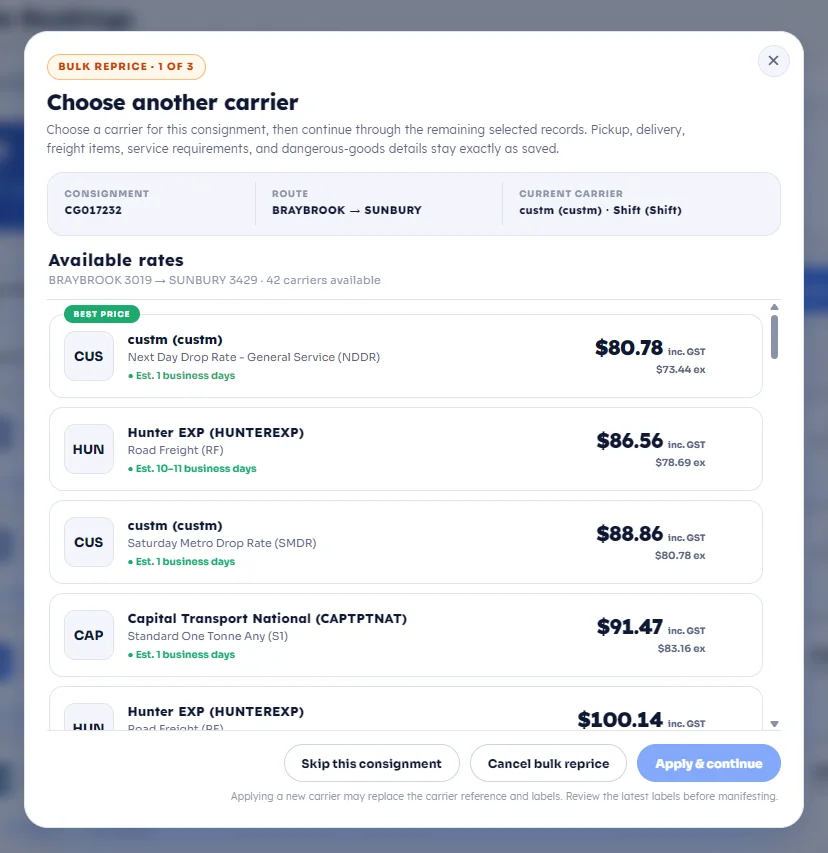
The repricing modal shows the current consignment, route, current carrier, and a list of available carrier/service options so you can choose the most suitable rate for that record.
Before you start
- Open My Jobs Bookings in the customer portal.
- Go to the Pending tab.
- Select the unmanifested consignments you want to reprice.
What changes during repricing
Bulk repricing updates the selected carrier and quoted amount for each consignment. The modal continues through the selected records until you reach the last consignment in the batch.
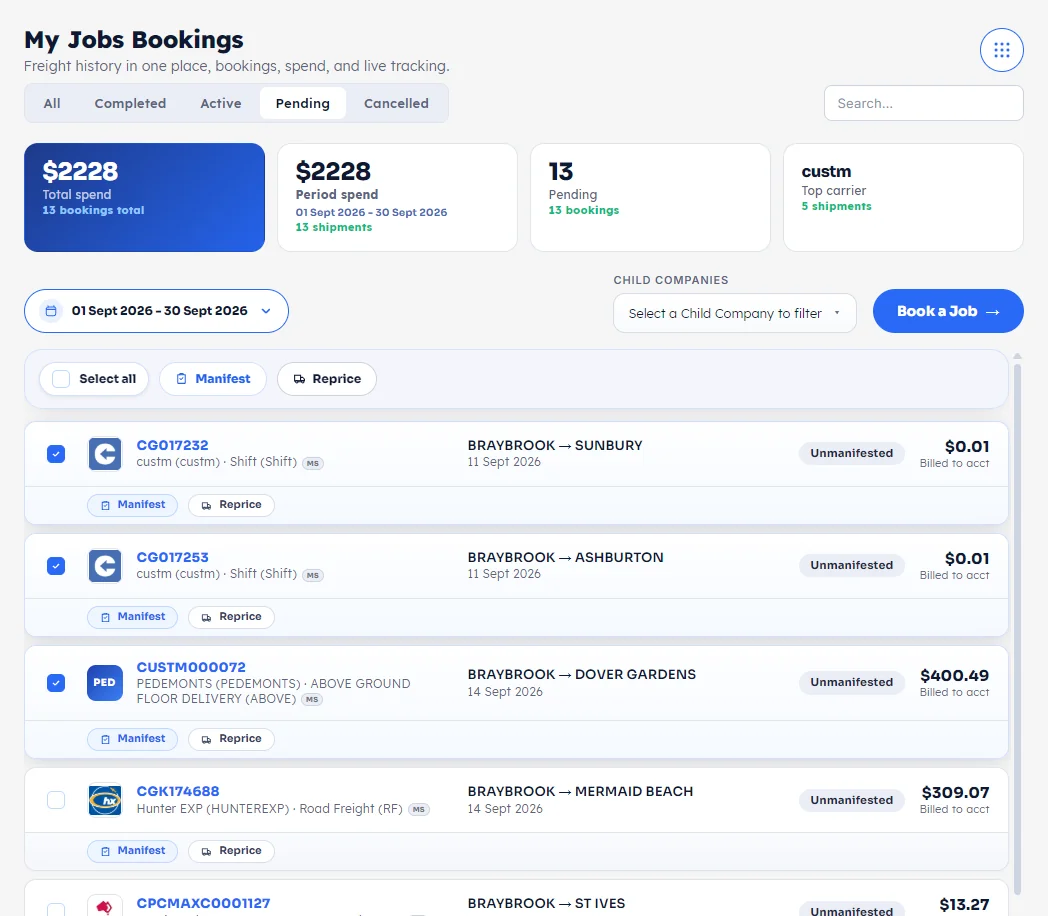
Select the consignments you want to reprice
In the customer portal, open My Jobs Bookings and stay in the Pending tab. Tick the unmanifested consignments that need a new rate, then click the bulk Reprice button above the records.
Review the consolidated bulk repricing modal
The Choose another carrier modal is the main bulk repricing screen. It consolidates the workflow so you can reprice each selected consignment from one guided sequence.
Apply the selected rate and continue until the last consignment
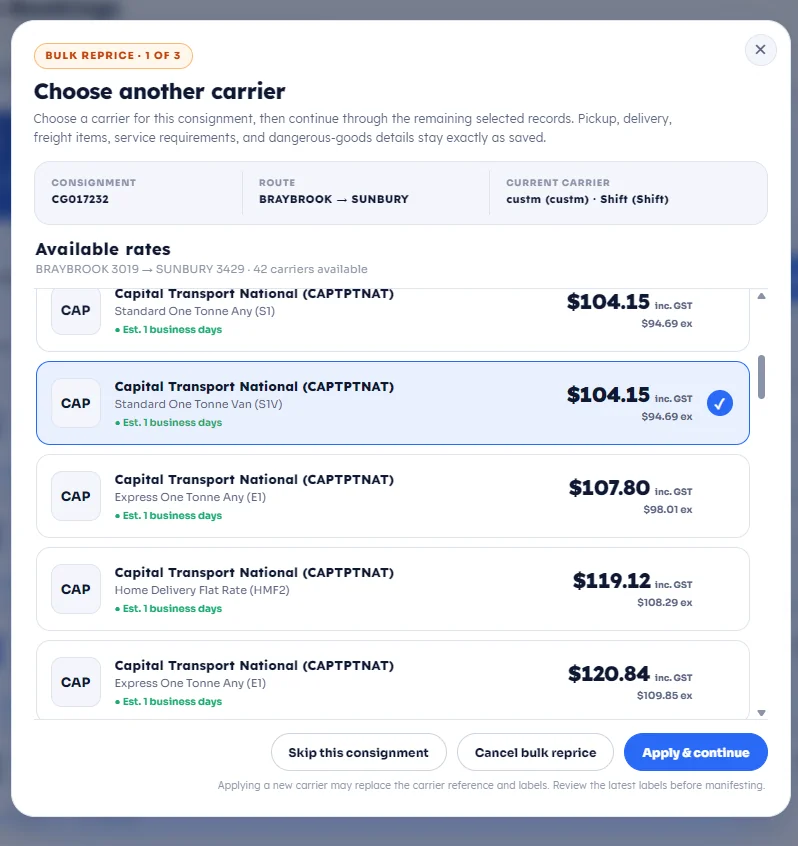
After selecting the preferred carrier and rate, click Apply & continue. The modal will move to the next selected consignment so you can repeat the same decision until you reach the last record in the batch.
Your selected Jobs are repriced.
The workflow is complete: select the pending consignments, choose the preferred carrier/rate in the consolidated repricing modal, and keep clicking Apply & continue until the batch finishes. The carrier and price update automatically based on your selections.