Manifest multiple pending consignments in one workflow
Use My Jobs Bookings to select the unmanifested consignments that are ready, enter the pickup details once, complete the bulk manifest, and access the booking documents for each manifested consignment.
Manifest selected consignments together
From the Pending tab, you can select the consignments you want to process and run the bulk manifest workflow instead of opening each record separately.
Enter the pickup details once for the whole selection
The bulk manifest window summarises the selected consignments and lets you complete the main pickup values before the selected Jobs are manifested.
Before you start
- Open My Jobs Bookings in the customer portal.
- Make sure you are working in the Pending tab.
- Select only the unmanifested consignments you are ready to manifest.
What you will need
For a bulk manifest, have the carrier pickup choice, pickup date, pickup time, closing time, pallet spaces when relevant, and any optional pickup instructions ready before confirming the selected consignments.
Select the consignments you want to manifest
In the customer portal, open My Jobs Bookings and go to the Pending tab. Tick the consignments you want to change from unmanifested to manifested. When your selection is ready, click the bulk Manifest button above the records.
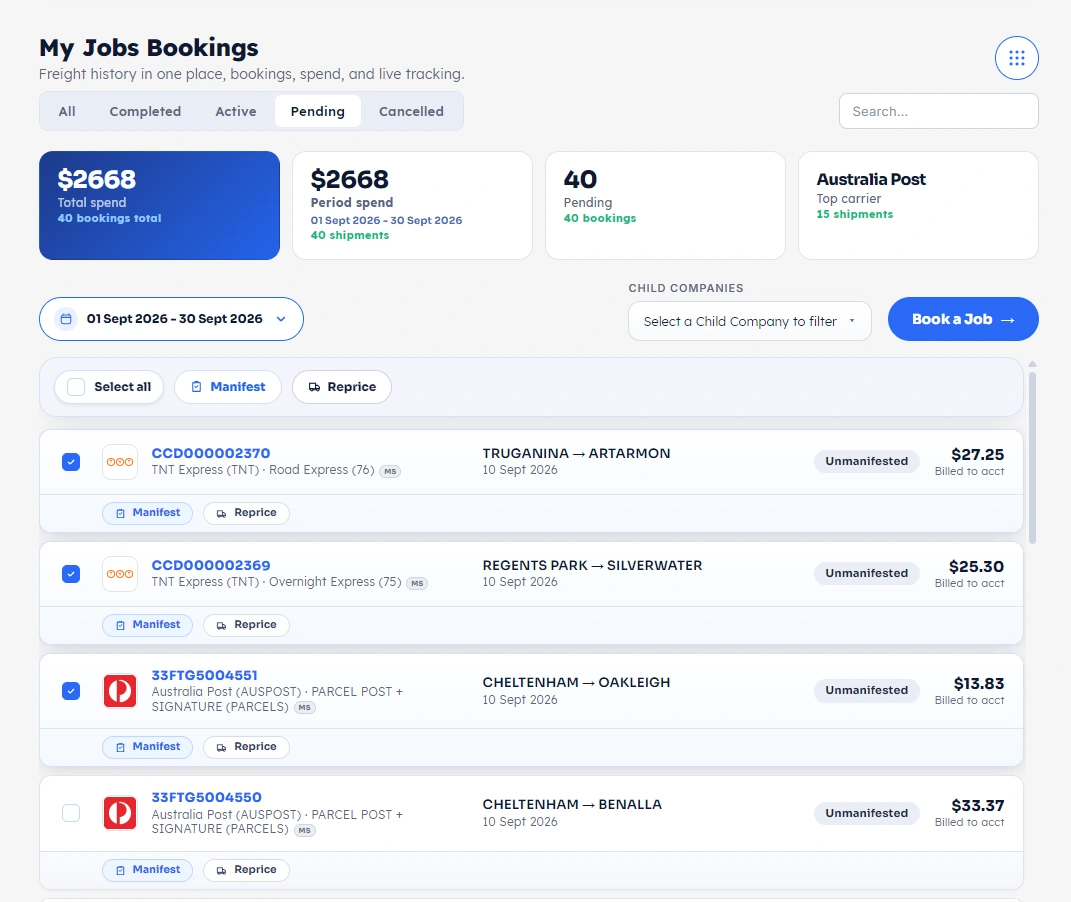
Enter the pickup details for the selected consignments
The Manifest selected consignments? window summarises the selected Jobs and lets you enter the pickup information once for the bulk manifest.
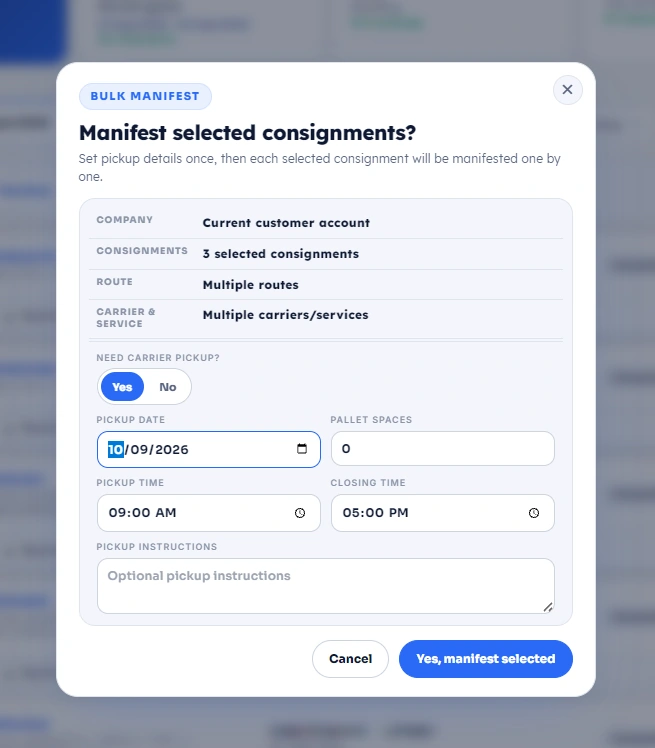
Confirm the result and download the booking documents
After the bulk manifest finishes successfully, the completion window shows how many consignments were manifested and lists each completed consignment.
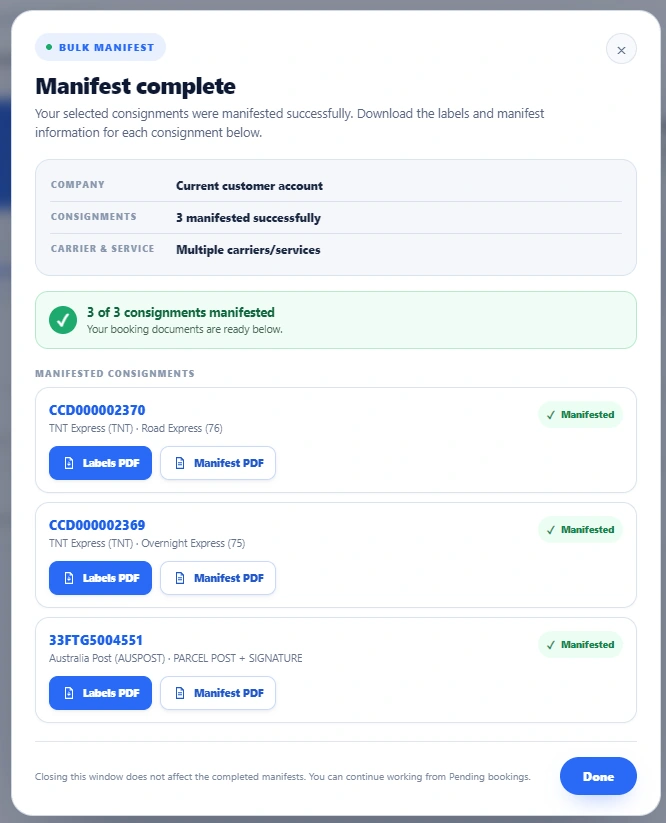
Your selected Jobs are manifested.
The workflow is complete: select the pending consignments, enter the pickup details, confirm the bulk manifest, then download the labels and manifest documents you need.