Jobs Frequent Items

How to Add and View Frequent Items in My Jobs Bookings

Learn how to open the menu in My Jobs Bookings, select Frequent items, add a new frequent item, and view, search, delete, or bulk import items from the frequent-items modal. MachShip frequent items are also synced into this list.

custm Jobs · Profile tools

Add and view frequent items in My Jobs Bookings

Use the menu in My Jobs Bookings to open Frequent items, add a new reusable item, and manage the saved item list for your account. MachShip frequent items are also synced into this list so they can be viewed and managed from the same screen.

What this workflow does

Store reusable freight item details for Jobs bookings

The Frequent items modal lets you add common freight item details once, then access them later when booking or preparing Jobs consignments.

What else appears here

See your synced and saved item list in one place

The saved list includes items you add from this modal as well as MachShip frequent items that sync into the same view, making it easier to search and manage what is available.

Before you start

  • Sign in to the customer portal.
  • Open My Jobs Bookings.
  • Make sure you are in the correct customer account before opening the frequent-items tool.

What you can do here

You can add new frequent items, view all saved or synced items, search the list, delete items when needed, and bulk add items by downloading the CSV template and importing the completed file.

1STEP 1 - My Jobs Bookings

Go to My Jobs Bookings and find the menu button

Open the customer portal and go to My Jobs Bookings. In the top-right area of the page, locate the menu-style button used for operational controls.
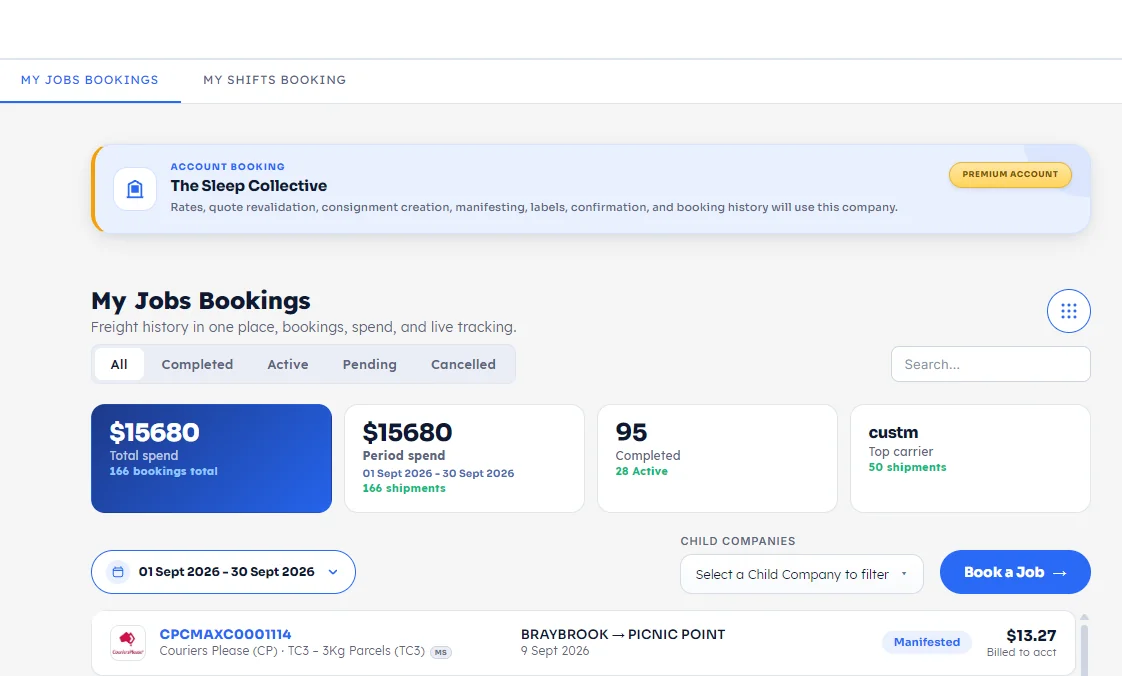
This button opens extra account tools related to the current Jobs account, including the Frequent items feature.
My Jobs Bookings page showing the upper-right operational controls area
Open My Jobs Bookings and look to the top-right of the page.
Close-up of the Jobs menu-style button in the upper-right corner
Click the menu-style icon button.
2STEP 2 - Operational Controls

Open the menu and choose Frequent items

After clicking the upper-right menu button, a small operational controls dropdown appears. Select Frequent items from the available options.
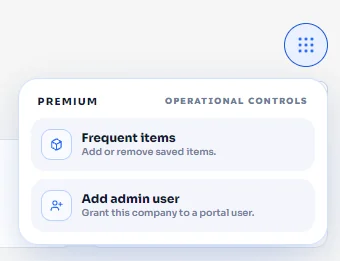
Once selected, the Frequent items modal opens for the active Jobs account so you can add or manage item records.
Operational controls dropdown in My Jobs Bookings showing the Frequent items option
Select Frequent items from the dropdown menu.
3STEP 3 - Add a Frequent Item

Enter the item details and save a new frequent item

At the top of the Frequent items modal, fill in the item details for the record you want to save.
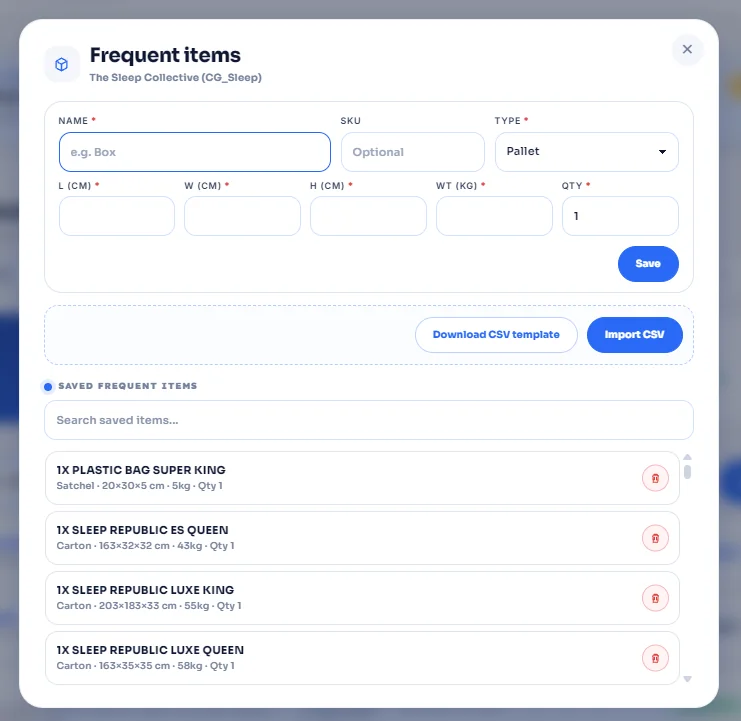
Complete the important fields such as Name, optional SKU, required Type, L (cm), W (cm), H (cm), WT (kg), and QTY. When ready, click Save to add the item to your account list.
Frequent items modal with the new item form and Save button at the top
Use the form at the top of the modal to enter the item details, then click Save.
4STEP 4 - View and Manage Items

View all frequent items, including synced MachShip items

Below the form, the modal shows the Saved Frequent Items list. This is where you can view all of your frequent items, including MachShip frequent items that sync into this screen.

Use the search field to find items quickly, use the delete action to remove items you no longer need, and bulk add more items by clicking Download CSV template, following the required format in the file, and then using Import CSV.
Frequent items modal showing the saved frequent items list, search field, delete actions, and CSV buttons
View the synced and saved frequent items list, search items, delete items, or use the CSV tools for bulk additions.

Your Jobs frequent items are ready to manage.

The workflow is complete: open My Jobs Bookings, use the menu button, choose Frequent items, save a new item, and manage the full saved list from the same modal.

My Jobs BookingsFrequent ItemsMachShip SyncSearch ItemsDelete ItemsCSV Import
Link copied